|
<< Click to Display Table of Contents >> Advanced Search |
  
|
|
<< Click to Display Table of Contents >> Advanced Search |
|
Advanced Search Procedures
1. Click on the icon beside the Search System.
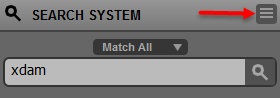
2. Enter your search filters.
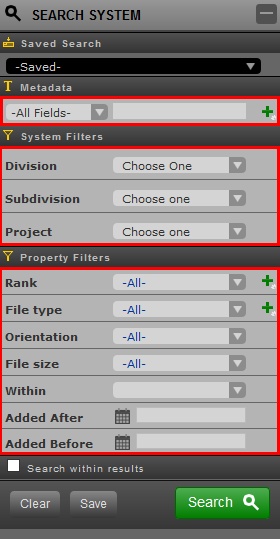
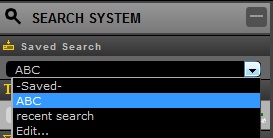
| ❖ | Saved Search |
This should contain a list of previously saved searches.
| ❖ | Metadata |
The drop down in the Metadata window pane lets you choose which Metadata detail to search for.
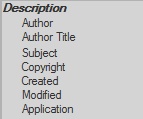
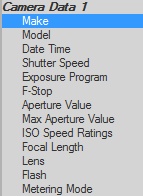
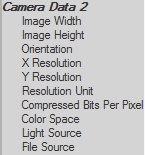
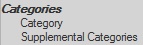
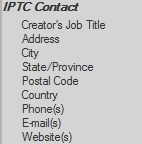
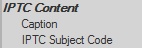
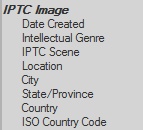
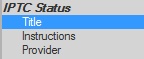
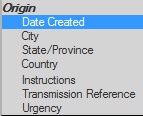
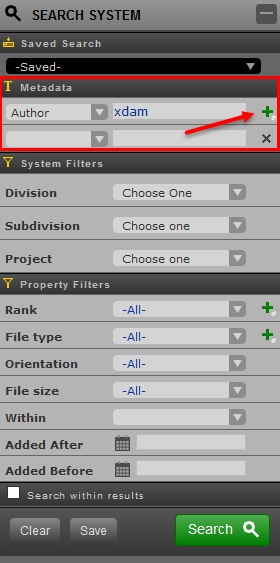
One or more of the options filters can be selected. To add more metadata filters, click on the plus (+) sign then select from the dropdown.
| ❖ | System Filters |
This filter will let you narrow your search by specifying which Division(s), Subdivision(s) and Project(s) to search for. The fields in this window pane will auto-populate known Divisions, Subdivisions and Projects.
Note:
The System Filter window pane is not present in Project Search since the it will search the asset in a specified Project.
| ❖ | Property Filters |
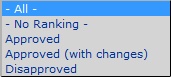
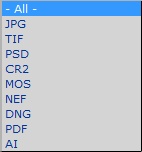
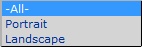
To narrow even more your Search, the user can utilize the Property Filters window pane. This will let you filter the following properties of an asset(s).
Rank |
|
File Type |
|
Orientation |
|
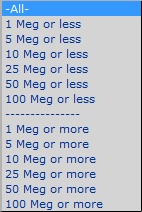
File Size |
|
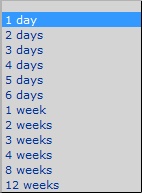
Dates and Interval |
|
NOTE:
You can also select one or more Rank and File Types by clicking on the plus (+) sign.
3. Click Search.
If these filters are frequently used, the User can save this by clicking the Save button then enter a name for that search.
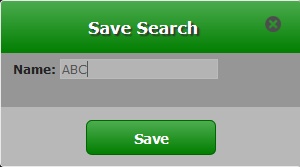
This saved filters should be located in the drop down in the Saved search window pane.