|
<< Click to Display Table of Contents >> Find and Replace |
  
|
|
<< Click to Display Table of Contents >> Find and Replace |
|
The Find and Replace is a tool in the Metadata Panel that allows the user to search for a word, phrase or special characters, so long as they are all immediate succession of one another within a specified metadata field, or multiple specified metadata fields and replace it with another word(s).
Note:
Find and Replace will not work on Drop-Down menus, Radio buttons and Data selection metadata fields. Those fields will be removed as option to search when Find and Replace is activated.
| ✓ | The tool will be available to all users with "Edit Metadata" permission. |
| ✓ | The user can select all, deselect all or click specific Metadata fields to search against. |
| ✓ | A case sensitive check box is also available as an option. |
Note:
One image must be highlighted to activate the Metadata Panel, same as you would to edit a metadata field. The image does not have to be selected using the select check box, simply highlighted.
Figure 1 shows the use interface when Find and Replace is turned OFF

Figure 2 shows the user interface when Find and Replace is turned ON. When Find and Replace is selected, the button will turn blue to indicate it is active.

Identifying Find and Replace user interface

1. “Find” & “Replace” fields. There is a 40 character string limit.
2. Case Sensitive check box.
3. Available metadata fields with check boxes. *None selected by default.
4. Submit button.
Example:
| 1. | Click the "Find and Replace" button. |
| 2. | Put your entries in the "Find" and "Replace" fields. *Put a check mark on "Case Sensitive". |
| 3. | Select the checkbox to the left of the metadata fields. |
| 4. | Click the "Submit" button. |

Note:
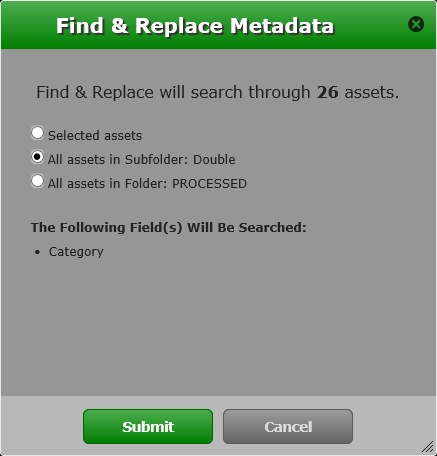
Once submitted a pop up should appear asking whether you would like to apply the Find & Replace to just the “Selected assets”, “All assets in Subfolder: <Subfolder Name>” or “All assets in Folder: <Folder Name>:” Below, is a list of which field(s) will be searched.
5. Click the "Submit" button at the bottom.
6. Once completed:
a. If you had replacements occur, you will see the results in the pop-up window below.

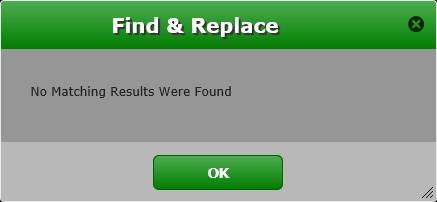
b. If no matching results were found, you would get the pop-up below.
Note:
| ✓ | When the user clicks "OK", it will go back to the metadata panel with the Find and Replace active and the previous entries still in place. |
| ✓ | When you toggle the Find and Replace button, the previous entries will be removed and the user interface is set to a clean start. |